iPad Desk Ergonomics: Proven Ways to Stop Neck Pain

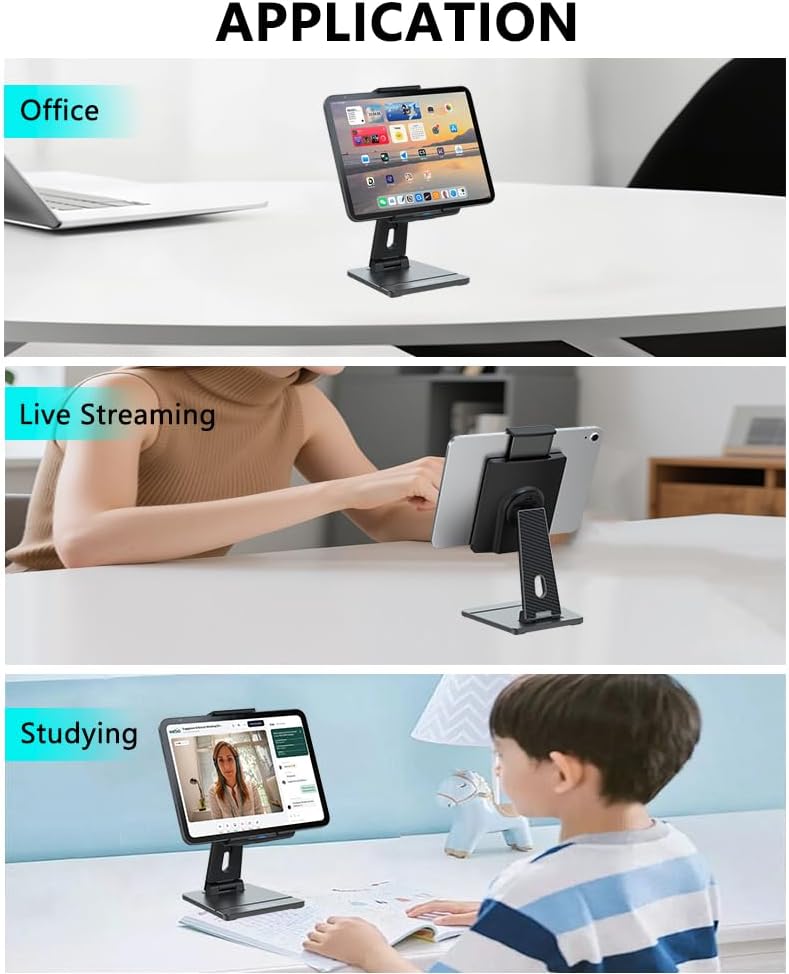
iPad desk ergonomics is the difference between an iPad that feels like a comfortable second screen and an iPad that slowly causes neck pain. If you’re looking down at your iPad for hours—reading, drawing, studying, or joining video calls—your posture will eventually pay the price.
The good news: you don’t need a new desk. These proven adjustments help improve iPad desk ergonomics, reduce “tech‑neck,” and make your iPad setup cleaner and more professional.
Ergonomics Check
Try this quick test right now:
- Sit normally and look at your iPad.
- If your chin drops toward your chest, your screen is too low.
- If you lean forward to read, your screen is too far or too flat.
- If your shoulders creep up, your screen is too high or your arms are reaching.
Good iPad desk ergonomics keeps your head more upright, shoulders relaxed, and your eyes looking forward—not down.
iPad Desk Setup: Fix Height First
The #1 improvement for a better iPad desk setup is lifting the iPad so you’re not constantly looking down.
- For reading and calls: aim closer to eye level.
- For drawing: you can go lower, but avoid “flat on the desk” for long sessions.
Even a small height change reduces neck bending and makes your setup feel more like a workstation.
Set the Right Tilt (Stop the Hunch)
Height alone won’t solve it if the tilt is wrong.
- Too flat → you hunch forward.
- Too vertical → wrists and shoulders tense up.
A simple rule: set the iPad tilt so you can read comfortably without leaning in. If you catch yourself moving your face closer to the screen, adjust the angle—not your posture.
This is a core principle of iPad desk ergonomics and one of the easiest fixes to apply.
EMONITA Ergonomic iPad Stand: What to Look For
Choosing an EMONITA ergonomic iPad stand (or a similar high‑quality stand) makes a big difference, especially if you tap the screen often or use Apple Pencil.
For daily comfort, look for:
- A heavier base that doesn’t tip
- Anti‑slip pads that stop sliding
- Hinges that hold position (no drifting)
- Enough adjustability for your typical tasks (calls, reading, drawing)
An EMONITA ergonomic iPad stand helps keep the screen stable, the viewing angle comfortable, and the desk visually clean—so your posture stays consistent.
iPad Cable Management: Cleaner Charging, Less Strain
Messy cables create clutter and also pull your iPad into awkward positions. Good iPad cable management improves both comfort and reliability.
Quick wins:
- Route charging behind the stand or behind the desk (not hanging off the iPad).
- Avoid sharp bends near the connector.
- Use clips or a cable channel to prevent accidental pulls.
- Keep the adapter out of your working area (under desk/behind monitor).
This also helps reduce plug/unplug wear, because you can keep a consistent charging path instead of constantly reconnecting.
If you want to see mounts and stands designed for cleaner setups, explore:
https://www.emonita.net/products/
Choose Portrait vs Landscape on Purpose
Random orientation changes often lead to awkward angles.
Good iPad desk ergonomics means choosing the orientation that matches your task:
- Portrait: reading, chat, notes, long documents
- Landscape: video calls, split screen, drawing apps, media
Pick your primary orientation and set your stand/mount around it. Consistency improves comfort and speed.
Improve Lighting to Reduce Leaning Forward
Bad lighting makes people lean in and squint—which looks like “neck pain from the iPad,” but it’s really a visibility problem.
Quick wins:
- Avoid strong window glare on the screen.
- Add soft side lighting if possible.
- Reduce brightness at night (don’t force your eyes).
Better lighting supports better iPad desk ergonomics because you can stay at a healthy viewing distance.
Build a Comfortable iPad Workstation Layout
If you use an iPad for work every day, treat it like a real iPad workstation—not a device you place randomly on the desk.
Try these placement rules:
- Keep your keyboard centered to your body.
- Place the iPad centered if it’s the main screen, or slightly off‑center if it’s a second screen.
- Avoid a far side position that forces constant neck twisting.
A consistent iPad workstation layout reduces fatigue over long sessions and makes your desk feel more organized.
Heat & Airflow (Often Ignored)
If the iPad is charging while mounted, it needs airflow. Heat can also encourage you to reposition the device to “cool it down,” breaking your posture and setup consistency.
- Don’t trap the iPad in tight spaces.
- Keep it out of direct sunlight.
- Leave a small gap around the device for airflow and speaker output.
Helpful Links + Follow EMONITA
Identify your iPad model (useful before buying mounts/cases):
https://support.apple.com/en-us/HT201471
Explore EMONITA iPad accessories and mounting solutions (internal):
https://www.emonita.net/products/
Social Media and Contact
Follow EMONITA
Website
YouTube 1
YouTube 2
TikTok 1
TikTok 2
Facebook
Facebook Page
Facebook Business
Instagram
X (Twitter)
Contact
Tel/WhatsApp: +1 2244916232
WhatsApp / WeChat: +86 18959199691
Email: sales@emonita.net